SAMPLE APP
# Pinecone Assistant
A chat interface for your Pinecone Assistant to answer complex questions on your proprietary data
$ npx create-pinecone-app@latest --template pinecone-assistant} copy />
The Pinecone Assistant sample app demonstrates how to connect a chat interface to your Pinecone Assistant to answer complex questions on your proprietary data. This app allows users to upload PDF documents, process them, and then ask questions about the content using a chat interface.
## Built with
* Pinecone Assistant API
* Next.js + tailwind
* Node version 20 or higher
***
## Run the sample app
The fastest way to get started is to use the `create-pinecone-app` CLI tool to get up and running:
```bash theme={null}
npx -y create-pinecone-app@latest --template pinecone-assistant
```
### Get your API key
You need an API key to make API calls to your Pinecone project:
Then copy your generated key:
```
PINECONE_API_KEY="{{YOUR_API_KEY}}"
```
Alternatively, follow these steps:
1. Open the Pinecone console.
2. Select your project.
3. Go to **[API Keys](https://app.pinecone.io/organizations/-/projects/-/keys)**.
4. Copy your API key.
### Create a Pinecone Assistant
You can create a Pinecone Assistant [in the console](https://app.pinecone.io/organizations/-/projects/-/assistant), or by following the instructions [here](/guides/assistant/create-assistant).
### Start the project
**Requires Node version 20+**
#### Dependency installation
From the project root directory, run the following command:
```bash theme={null}
cd pinecone-assistant && npm install
```
Make sure you have populated the `.env` file with relevant keys:
```bash theme={null}
PINECONE_API_KEY="your-pinecone-api-key-here"
PINECONE_ASSISTANT_NAME="your-pinecone-assistant-name-here"
# Set this if you want users chatting with your assistant to be able to see
# and click into the files used as references in answers
SHOW_ASSISTANT_FILES=true
```
Start the app:
```bash theme={null}
npm run dev
```
## Project structure
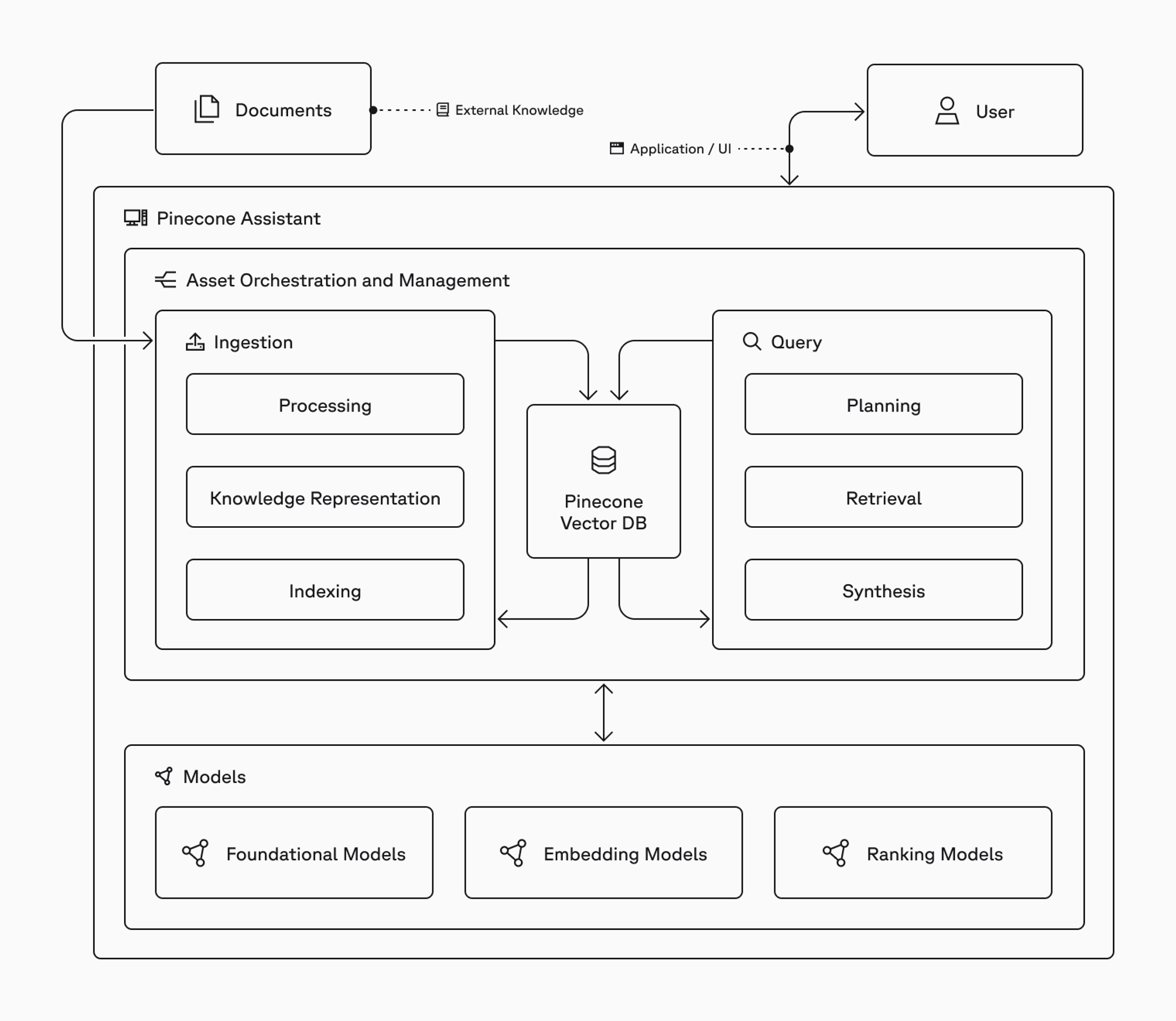
This project uses a standard Next.js application structure with API routes for backend functionality.
**Frontend client**
The frontend uses Next.js, Tailwind CSS, and custom React components to power the chat interface.
**Backend server**
This project uses Next.js API routes to proxy requests to the Pinecone Assistant API.
 ***
### Key features
1. **Connect to existing Pinecone Assistant**: Connect to an existing Pinecone Assistant to provide a chat experience that can be hosted privately or publicly.
2. **Streaming responses**: Ask questions of the assistant and get responses streamed to the frontend in real-time.
3. **Reference highlighting**: Documents that were used in answering user questions are highlighted as references.
### Implementation details
**Server action for chat**
The server action creates a stream with Pinecone Assistants:
```typescript theme={null}
'use server'
import { createStreamableValue } from 'ai/rsc'
import { EventSource } from 'extended-eventsource';
type Message = {
role: string;
content: string;
}
export async function chat(messages: Message[]) {
// Create an initial stream, which we'll populate with events from the Pinecone Assistants API
const stream = createStreamableValue()
// Construct the full URL to the Pinecone Assistant API for the specific assistant
// indicated by the user
const url = `${process.env.PINECONE_ASSISTANT_URL}/${process.env.PINECONE_ASSISTANT_NAME}/chat/completions`
const eventSource = new EventSource(url, {
method: 'POST',
body: JSON.stringify({
stream: true,
messages,
}),
headers: {
Authorization: `Bearer ${process.env.PINECONE_API_KEY}`,
'X-Project-Id': process.env.PINECONE_ASSISTANT_ID!,
},
disableRetry: true,
});
// When we receive a new message from the Pinecone Assistant API, we update the stream
// unless the Assistant is done, in which case we close the stream
eventSource.onmessage = (event: MessageEvent) => {
const message = JSON.parse(event.data)
if (message?.choices[0]?.finish_reason) {
eventSource.close();
stream.done();
} else {
stream.update(event.data)
}
};
eventSource.onerror = (error) => {
console.error('EventSource error:', error);
eventSource.close();
};
return { object: stream.value }
}
```
**Chat functionality**
The chat functionality in the Home component consumes the stream from the server action and updates the UI in real-time:
```typescript theme={null}
const handleChat = async () => {
if (!input.trim()) return;
const newUserMessage: Message = {
id: uuidv4(), // Generate a unique ID
role: 'user',
content: input,
timestamp: new Date().toISOString()
};
setMessages(prevMessages => [...prevMessages, newUserMessage]);
setInput('');
setIsStreaming(true);
try {
const { object } = await chat([newUserMessage]);
let accumulatedContent = '';
const newAssistantMessage: Message = {
id: uuidv4(),
role: 'assistant',
content: '',
timestamp: new Date().toISOString(),
references: []
};
setMessages(prevMessages => [...prevMessages, newAssistantMessage]);
// Process the response stream from the Assistant that is created in the ./actions.ts Server action
for await (const chunk of readStreamableValue(object)) {
try {
const data = JSON.parse(chunk);
const content = data.choices[0]?.delta?.content;
if (content) {
accumulatedContent += content;
}
setMessages(prevMessages => {
const updatedMessages = [...prevMessages];
const lastMessage = updatedMessages[updatedMessages.length - 1];
lastMessage.content = accumulatedContent;
return updatedMessages;
});
} catch (error) {
console.error('Error parsing chunk:', error);
}
}
// Extract references after the full message is received
const extractedReferences = extractReferences(accumulatedContent);
setReferencedFiles(extractedReferences);
} catch (error) {
console.error('Error in chat:', error);
setError('An error occurred while chatting.');
} finally {
setIsStreaming(false);
}
};
```
***
## Troubleshooting
Experiencing any issues with the sample app?
[Submit an issue, create a PR](https://github.com/pinecone-io/sample-apps/), or post in our [community forum](https://community.pinecone.io)!
***
### Key features
1. **Connect to existing Pinecone Assistant**: Connect to an existing Pinecone Assistant to provide a chat experience that can be hosted privately or publicly.
2. **Streaming responses**: Ask questions of the assistant and get responses streamed to the frontend in real-time.
3. **Reference highlighting**: Documents that were used in answering user questions are highlighted as references.
### Implementation details
**Server action for chat**
The server action creates a stream with Pinecone Assistants:
```typescript theme={null}
'use server'
import { createStreamableValue } from 'ai/rsc'
import { EventSource } from 'extended-eventsource';
type Message = {
role: string;
content: string;
}
export async function chat(messages: Message[]) {
// Create an initial stream, which we'll populate with events from the Pinecone Assistants API
const stream = createStreamableValue()
// Construct the full URL to the Pinecone Assistant API for the specific assistant
// indicated by the user
const url = `${process.env.PINECONE_ASSISTANT_URL}/${process.env.PINECONE_ASSISTANT_NAME}/chat/completions`
const eventSource = new EventSource(url, {
method: 'POST',
body: JSON.stringify({
stream: true,
messages,
}),
headers: {
Authorization: `Bearer ${process.env.PINECONE_API_KEY}`,
'X-Project-Id': process.env.PINECONE_ASSISTANT_ID!,
},
disableRetry: true,
});
// When we receive a new message from the Pinecone Assistant API, we update the stream
// unless the Assistant is done, in which case we close the stream
eventSource.onmessage = (event: MessageEvent) => {
const message = JSON.parse(event.data)
if (message?.choices[0]?.finish_reason) {
eventSource.close();
stream.done();
} else {
stream.update(event.data)
}
};
eventSource.onerror = (error) => {
console.error('EventSource error:', error);
eventSource.close();
};
return { object: stream.value }
}
```
**Chat functionality**
The chat functionality in the Home component consumes the stream from the server action and updates the UI in real-time:
```typescript theme={null}
const handleChat = async () => {
if (!input.trim()) return;
const newUserMessage: Message = {
id: uuidv4(), // Generate a unique ID
role: 'user',
content: input,
timestamp: new Date().toISOString()
};
setMessages(prevMessages => [...prevMessages, newUserMessage]);
setInput('');
setIsStreaming(true);
try {
const { object } = await chat([newUserMessage]);
let accumulatedContent = '';
const newAssistantMessage: Message = {
id: uuidv4(),
role: 'assistant',
content: '',
timestamp: new Date().toISOString(),
references: []
};
setMessages(prevMessages => [...prevMessages, newAssistantMessage]);
// Process the response stream from the Assistant that is created in the ./actions.ts Server action
for await (const chunk of readStreamableValue(object)) {
try {
const data = JSON.parse(chunk);
const content = data.choices[0]?.delta?.content;
if (content) {
accumulatedContent += content;
}
setMessages(prevMessages => {
const updatedMessages = [...prevMessages];
const lastMessage = updatedMessages[updatedMessages.length - 1];
lastMessage.content = accumulatedContent;
return updatedMessages;
});
} catch (error) {
console.error('Error parsing chunk:', error);
}
}
// Extract references after the full message is received
const extractedReferences = extractReferences(accumulatedContent);
setReferencedFiles(extractedReferences);
} catch (error) {
console.error('Error in chat:', error);
setError('An error occurred while chatting.');
} finally {
setIsStreaming(false);
}
};
```
***
## Troubleshooting
Experiencing any issues with the sample app?
[Submit an issue, create a PR](https://github.com/pinecone-io/sample-apps/), or post in our [community forum](https://community.pinecone.io)!
***
### Key features
1. **Connect to existing Pinecone Assistant**: Connect to an existing Pinecone Assistant to provide a chat experience that can be hosted privately or publicly.
2. **Streaming responses**: Ask questions of the assistant and get responses streamed to the frontend in real-time.
3. **Reference highlighting**: Documents that were used in answering user questions are highlighted as references.
### Implementation details
**Server action for chat**
The server action creates a stream with Pinecone Assistants:
```typescript theme={null}
'use server'
import { createStreamableValue } from 'ai/rsc'
import { EventSource } from 'extended-eventsource';
type Message = {
role: string;
content: string;
}
export async function chat(messages: Message[]) {
// Create an initial stream, which we'll populate with events from the Pinecone Assistants API
const stream = createStreamableValue()
// Construct the full URL to the Pinecone Assistant API for the specific assistant
// indicated by the user
const url = `${process.env.PINECONE_ASSISTANT_URL}/${process.env.PINECONE_ASSISTANT_NAME}/chat/completions`
const eventSource = new EventSource(url, {
method: 'POST',
body: JSON.stringify({
stream: true,
messages,
}),
headers: {
Authorization: `Bearer ${process.env.PINECONE_API_KEY}`,
'X-Project-Id': process.env.PINECONE_ASSISTANT_ID!,
},
disableRetry: true,
});
// When we receive a new message from the Pinecone Assistant API, we update the stream
// unless the Assistant is done, in which case we close the stream
eventSource.onmessage = (event: MessageEvent) => {
const message = JSON.parse(event.data)
if (message?.choices[0]?.finish_reason) {
eventSource.close();
stream.done();
} else {
stream.update(event.data)
}
};
eventSource.onerror = (error) => {
console.error('EventSource error:', error);
eventSource.close();
};
return { object: stream.value }
}
```
**Chat functionality**
The chat functionality in the Home component consumes the stream from the server action and updates the UI in real-time:
```typescript theme={null}
const handleChat = async () => {
if (!input.trim()) return;
const newUserMessage: Message = {
id: uuidv4(), // Generate a unique ID
role: 'user',
content: input,
timestamp: new Date().toISOString()
};
setMessages(prevMessages => [...prevMessages, newUserMessage]);
setInput('');
setIsStreaming(true);
try {
const { object } = await chat([newUserMessage]);
let accumulatedContent = '';
const newAssistantMessage: Message = {
id: uuidv4(),
role: 'assistant',
content: '',
timestamp: new Date().toISOString(),
references: []
};
setMessages(prevMessages => [...prevMessages, newAssistantMessage]);
// Process the response stream from the Assistant that is created in the ./actions.ts Server action
for await (const chunk of readStreamableValue(object)) {
try {
const data = JSON.parse(chunk);
const content = data.choices[0]?.delta?.content;
if (content) {
accumulatedContent += content;
}
setMessages(prevMessages => {
const updatedMessages = [...prevMessages];
const lastMessage = updatedMessages[updatedMessages.length - 1];
lastMessage.content = accumulatedContent;
return updatedMessages;
});
} catch (error) {
console.error('Error parsing chunk:', error);
}
}
// Extract references after the full message is received
const extractedReferences = extractReferences(accumulatedContent);
setReferencedFiles(extractedReferences);
} catch (error) {
console.error('Error in chat:', error);
setError('An error occurred while chatting.');
} finally {
setIsStreaming(false);
}
};
```
***
## Troubleshooting
Experiencing any issues with the sample app?
[Submit an issue, create a PR](https://github.com/pinecone-io/sample-apps/), or post in our [community forum](https://community.pinecone.io)!