SAMPLE APP
# Multimodal search
Multimodal search across text, images, and videos
$ npx create-pinecone-app@latest --template shop-the-look} copy />
The Shop The Look app demonstrates how to build a multimodal search engine for finding outfit inspiration using [Pinecone Vector Database](https://www.pinecone.io/?utm_source=shop-the-look\&utm_medium=referral), Google Cloud Vertex AI's [Multimodal Embedding Model](https://cloud.google.com/vertex-ai/generative-ai/docs/embeddings/get-multimodal-embeddings), and assets from [Pexels](https://www.pexels.com/). This application showcases how easy it is to use Pinecone in combining text, image, and video inputs to provide highly relevant outfit recommendations (or other multimodal use cases).
## Built with
* Pinecone Serverless
* Google Cloud Vertex AI Multimodal Embedding Model
* Next.js + Tailwind CSS
* Vercel
* NodeJS
***
## Run the sample app
The fastest way to get started is to use the `create-pinecone-app` CLI tool to run **Shop The Look** in **demo** mode.
```bash theme={null}
npx create-pinecone-app@latest --template shop-the-look
```
***Note:** Demo mode is for developers who want to quickly deploy and test the Shop The Look application without setting up their own backend services or supply their own image/video assets. This demo deployment includes over 45,000 royalty-free images and videos, allowing you to deploy the front-end locally, while utilizing our hosted backend API (which we have set up with all assets, Pinecone Serverless index, and Google Cloud Vertex AI).*
## Full deployment
For developers who want to deploy a fully customizable **Shop The Look** application with their own images and videos, we offer a full deployment option. This method requires setting up both the frontend and backend components, including Pinecone Serverless, Google Cloud Vertex AI, and Google Cloud Storage, and uploading your own images and videos.
A short version of the full deployment is listed below.
**For the complete documentation, click [here](https://github.com/pinecone-io/sample-apps/tree/main/shop-the-look#%EF%B8%8F-full-deployment-30-minutes) for the Shop The Look Full Deployment instructions.**
### Get your Pinecone API key
You need an API key to make calls to your Pinecone project:
Then copy your generated key:
```
PINECONE_API_KEY="{{YOUR_API_KEY}}"
```
Alternatively, follow these steps:
1. Open the Pinecone console.
2. Select your project.
3. Go to **API Keys**.
4. Copy your API key.
### Get your Google Cloud credentials
**We recommend you follow the [full docs for setting up your Google Cloud credentials](https://github.com/pinecone-io/sample-apps/tree/main/shop-the-look#google-cloud-setup)**. Below is a summary of the instructions.
1. Create an account in [Google Cloud](https://cloud.google.com/) if you don't already have one.
2. Create a new project in the [Google Cloud Console](https://console.cloud.google.com/).
3. Enable the `Vertex AI API` and `Cloud Storage API`.
4. Create a service account with `Vertex AI User` and `Storage Object Viewer` roles.
5. Generate and download a JSON key for the service account.
### Create a Pinecone serverless index
Create a Pinecone index for this project with the following properties:
* **dimension**: `1408`
* **metric**: `cosine`
* **region**: Choose your preferred region
You can create the index [in the console](https://app.pinecone.io/organizations/-/projects/-/create-index/serverless?utm_source=shop-the-look\&utm_medium=referral), or by following the instructions [here](https://docs.pinecone.io/guides/get-started/quickstart#4-create-a-serverless-index).
### Start the project
**Requires Node version 14+**
#### Dependency installation
From the project root directory, run the following command:
```bash theme={null}
cd shop-the-look && npm install
```
Make sure you have populated the `.env.development` with relevant keys:
```bash theme={null}
GOOGLE_CLOUD_PROJECT_ID="your-project-id"
GOOGLE_CLOUD_PROJECT_LOCATION="your-region"
GOOGLE_CLOUD_STORAGE_BUCKET_NAME="your-bucket-name"
GOOGLE_CREDENTIALS_BASE64="your-base64-encoded-credentials"
PINECONE_API_KEY="your-api-key"
PINECONE_INDEX_NAME="your-index-name"
PINECONE_TOP_K=20
```
Start the app:
```bash theme={null}
npm run dev
```
## Project structure
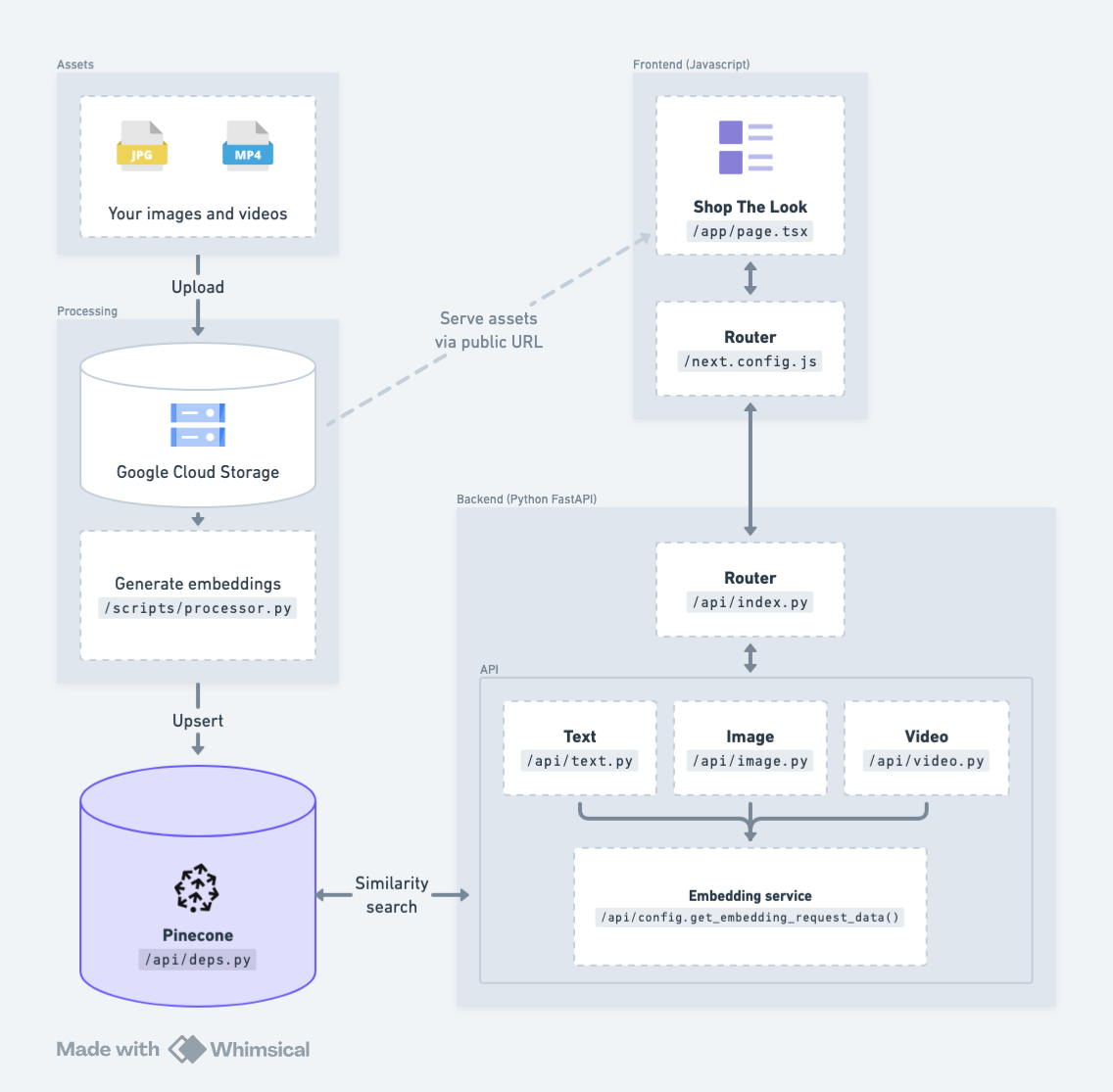 Shop The Look uses a NextJS frontend with a FastAPI Python backend. Utility scripts are included to process images and videos for embedding + upserting.
**Frontend Client**
The frontend uses Next.js, Tailwind CSS, and custom React components to power the search experience. It leverages custom API routes to make calls to the FastAPI backend for embedding and searching.
**Backend Server**
This project uses FastAPI to handle image/video processing, embedding generation, and Pinecone operations.
**Utility Scripts**
The image and video embedding processing scripts process a folder of images and videos from Google Cloud Storage, generate embeddings using Vertex AI, and upserts them to Pinecone Index.
***
### Architecture
Shop The Look is built using [Pinecone Vector Database](https://www.pinecone.io/?utm_source=shop-the-look\&utm_medium=referral), Google Cloud Vertex AI's [Multimodal Embedding Model](https://cloud.google.com/vertex-ai/generative-ai/docs/embeddings/get-multimodal-embeddings), assets from [Pexels](https://www.pexels.com/), and is hosted on [Vercel](https://vercel.com/).
Using pseudocode, we will explain how we built key components of Shop The Look.
**Pinecone Serverless**
This project uses Pinecone to store all the multimodal embeddings generated by Vertex AI's Multimodal Embedding Model.
```python theme={null}
pc = Pinecone(api_key)
index = pc.Index(index_name)
vector = [
{
'id': embedding_id,
'values': embedding_values,
'metadata': {
...
}
}
]
index.upsert(vector)
```
**Google Cloud Vertex AI integration**
This app uses Google Cloud Vertex AI's Multimodal Embedding Model to generate embeddings for text, images, and videos:
```python theme={null}
embeddings = model.get_embeddings(
asset=asset,
)
```
**Search functionality**
When the user executes a search, their query (text or image/video) is sent to the backend, which uses the Multimodal Embedding Model to convert the query into vector embeddings:
```python theme={null}
url, headers, data = get_embedding_request_data(access_token, asset, query)
response = requests.post(url, headers, data)
embedding_data = response.json()
vector = embedding_data['predictions'][0]['assetEmbedding']
```
These embeddings are then used to perform a similarity search in Pinecone:
```python theme={null}
query_response = index.query(
vector=vector,
top_k=top_k,
include_metadata=True
)
matches = query_response['matches']
```
The results are then displayed in the React frontend [`page.tsx`](https://github.com/pinecone-io/sample-apps/blob/main/shop-the-look/app/page.tsx)
***
## Troubleshooting
Experiencing any issues with the sample app?
Read the [Troubleshooting](https://github.com/pinecone-io/sample-apps/tree/main/shop-the-look#-troubleshooting) section of the Shop The Look README. If issues still persist, [submit an issue, create a PR](https://github.com/pinecone-io/sample-apps/), or post in our [community forum](https://community.pinecone.io?utm_source=shop-the-look\&utm_medium=referral)!
Shop The Look uses a NextJS frontend with a FastAPI Python backend. Utility scripts are included to process images and videos for embedding + upserting.
**Frontend Client**
The frontend uses Next.js, Tailwind CSS, and custom React components to power the search experience. It leverages custom API routes to make calls to the FastAPI backend for embedding and searching.
**Backend Server**
This project uses FastAPI to handle image/video processing, embedding generation, and Pinecone operations.
**Utility Scripts**
The image and video embedding processing scripts process a folder of images and videos from Google Cloud Storage, generate embeddings using Vertex AI, and upserts them to Pinecone Index.
***
### Architecture
Shop The Look is built using [Pinecone Vector Database](https://www.pinecone.io/?utm_source=shop-the-look\&utm_medium=referral), Google Cloud Vertex AI's [Multimodal Embedding Model](https://cloud.google.com/vertex-ai/generative-ai/docs/embeddings/get-multimodal-embeddings), assets from [Pexels](https://www.pexels.com/), and is hosted on [Vercel](https://vercel.com/).
Using pseudocode, we will explain how we built key components of Shop The Look.
**Pinecone Serverless**
This project uses Pinecone to store all the multimodal embeddings generated by Vertex AI's Multimodal Embedding Model.
```python theme={null}
pc = Pinecone(api_key)
index = pc.Index(index_name)
vector = [
{
'id': embedding_id,
'values': embedding_values,
'metadata': {
...
}
}
]
index.upsert(vector)
```
**Google Cloud Vertex AI integration**
This app uses Google Cloud Vertex AI's Multimodal Embedding Model to generate embeddings for text, images, and videos:
```python theme={null}
embeddings = model.get_embeddings(
asset=asset,
)
```
**Search functionality**
When the user executes a search, their query (text or image/video) is sent to the backend, which uses the Multimodal Embedding Model to convert the query into vector embeddings:
```python theme={null}
url, headers, data = get_embedding_request_data(access_token, asset, query)
response = requests.post(url, headers, data)
embedding_data = response.json()
vector = embedding_data['predictions'][0]['assetEmbedding']
```
These embeddings are then used to perform a similarity search in Pinecone:
```python theme={null}
query_response = index.query(
vector=vector,
top_k=top_k,
include_metadata=True
)
matches = query_response['matches']
```
The results are then displayed in the React frontend [`page.tsx`](https://github.com/pinecone-io/sample-apps/blob/main/shop-the-look/app/page.tsx)
***
## Troubleshooting
Experiencing any issues with the sample app?
Read the [Troubleshooting](https://github.com/pinecone-io/sample-apps/tree/main/shop-the-look#-troubleshooting) section of the Shop The Look README. If issues still persist, [submit an issue, create a PR](https://github.com/pinecone-io/sample-apps/), or post in our [community forum](https://community.pinecone.io?utm_source=shop-the-look\&utm_medium=referral)!
Shop The Look uses a NextJS frontend with a FastAPI Python backend. Utility scripts are included to process images and videos for embedding + upserting.
**Frontend Client**
The frontend uses Next.js, Tailwind CSS, and custom React components to power the search experience. It leverages custom API routes to make calls to the FastAPI backend for embedding and searching.
**Backend Server**
This project uses FastAPI to handle image/video processing, embedding generation, and Pinecone operations.
**Utility Scripts**
The image and video embedding processing scripts process a folder of images and videos from Google Cloud Storage, generate embeddings using Vertex AI, and upserts them to Pinecone Index.
***
### Architecture
Shop The Look is built using [Pinecone Vector Database](https://www.pinecone.io/?utm_source=shop-the-look\&utm_medium=referral), Google Cloud Vertex AI's [Multimodal Embedding Model](https://cloud.google.com/vertex-ai/generative-ai/docs/embeddings/get-multimodal-embeddings), assets from [Pexels](https://www.pexels.com/), and is hosted on [Vercel](https://vercel.com/).
Using pseudocode, we will explain how we built key components of Shop The Look.
**Pinecone Serverless**
This project uses Pinecone to store all the multimodal embeddings generated by Vertex AI's Multimodal Embedding Model.
```python theme={null}
pc = Pinecone(api_key)
index = pc.Index(index_name)
vector = [
{
'id': embedding_id,
'values': embedding_values,
'metadata': {
...
}
}
]
index.upsert(vector)
```
**Google Cloud Vertex AI integration**
This app uses Google Cloud Vertex AI's Multimodal Embedding Model to generate embeddings for text, images, and videos:
```python theme={null}
embeddings = model.get_embeddings(
asset=asset,
)
```
**Search functionality**
When the user executes a search, their query (text or image/video) is sent to the backend, which uses the Multimodal Embedding Model to convert the query into vector embeddings:
```python theme={null}
url, headers, data = get_embedding_request_data(access_token, asset, query)
response = requests.post(url, headers, data)
embedding_data = response.json()
vector = embedding_data['predictions'][0]['assetEmbedding']
```
These embeddings are then used to perform a similarity search in Pinecone:
```python theme={null}
query_response = index.query(
vector=vector,
top_k=top_k,
include_metadata=True
)
matches = query_response['matches']
```
The results are then displayed in the React frontend [`page.tsx`](https://github.com/pinecone-io/sample-apps/blob/main/shop-the-look/app/page.tsx)
***
## Troubleshooting
Experiencing any issues with the sample app?
Read the [Troubleshooting](https://github.com/pinecone-io/sample-apps/tree/main/shop-the-look#-troubleshooting) section of the Shop The Look README. If issues still persist, [submit an issue, create a PR](https://github.com/pinecone-io/sample-apps/), or post in our [community forum](https://community.pinecone.io?utm_source=shop-the-look\&utm_medium=referral)!