> ## Documentation Index
> Fetch the complete documentation index at: https://docs.pinecone.io/llms.txt
> Use this file to discover all available pages before exploring further.
# Hugging Face Inference Endpoints
> Integrate Pinecone with Hugging Face Inference Endpoints for vector search, RAG, and production AI workloads.
export const PrimarySecondaryCTA = ({primaryLabel, primaryHref, primaryTarget, secondaryLabel, secondaryHref, secondaryTarget}) =>
{primaryLabel && primaryHref &&
}
{secondaryLabel && secondaryHref &&
}
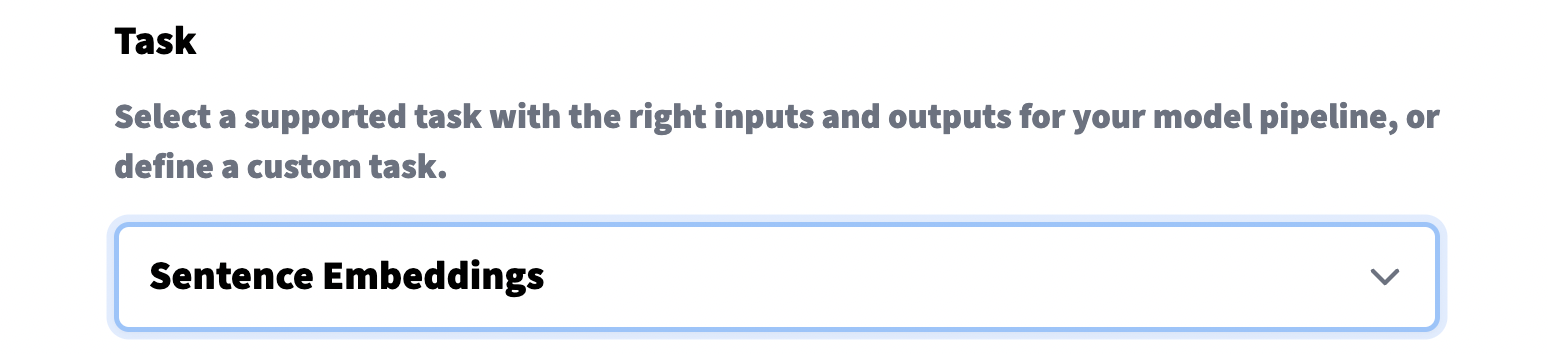
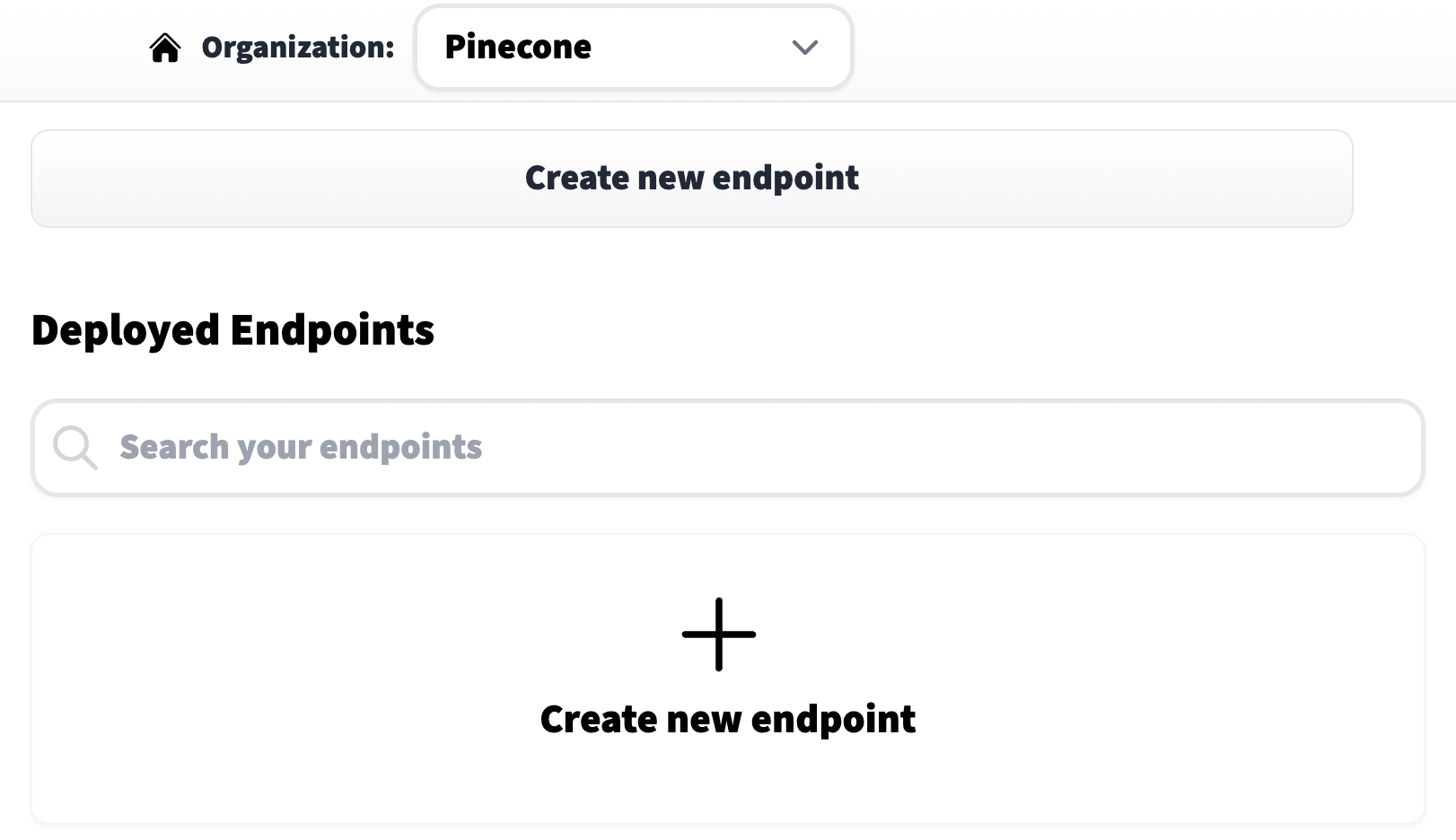 We click on **Create new endpoint**, choose a model repository (eg name of the model), endpoint name (this can be anything), and select a cloud environment. Before moving on it is *very important* that we set the **Task** to **Sentence Embeddings** (found within the *Advanced configuration* settings).
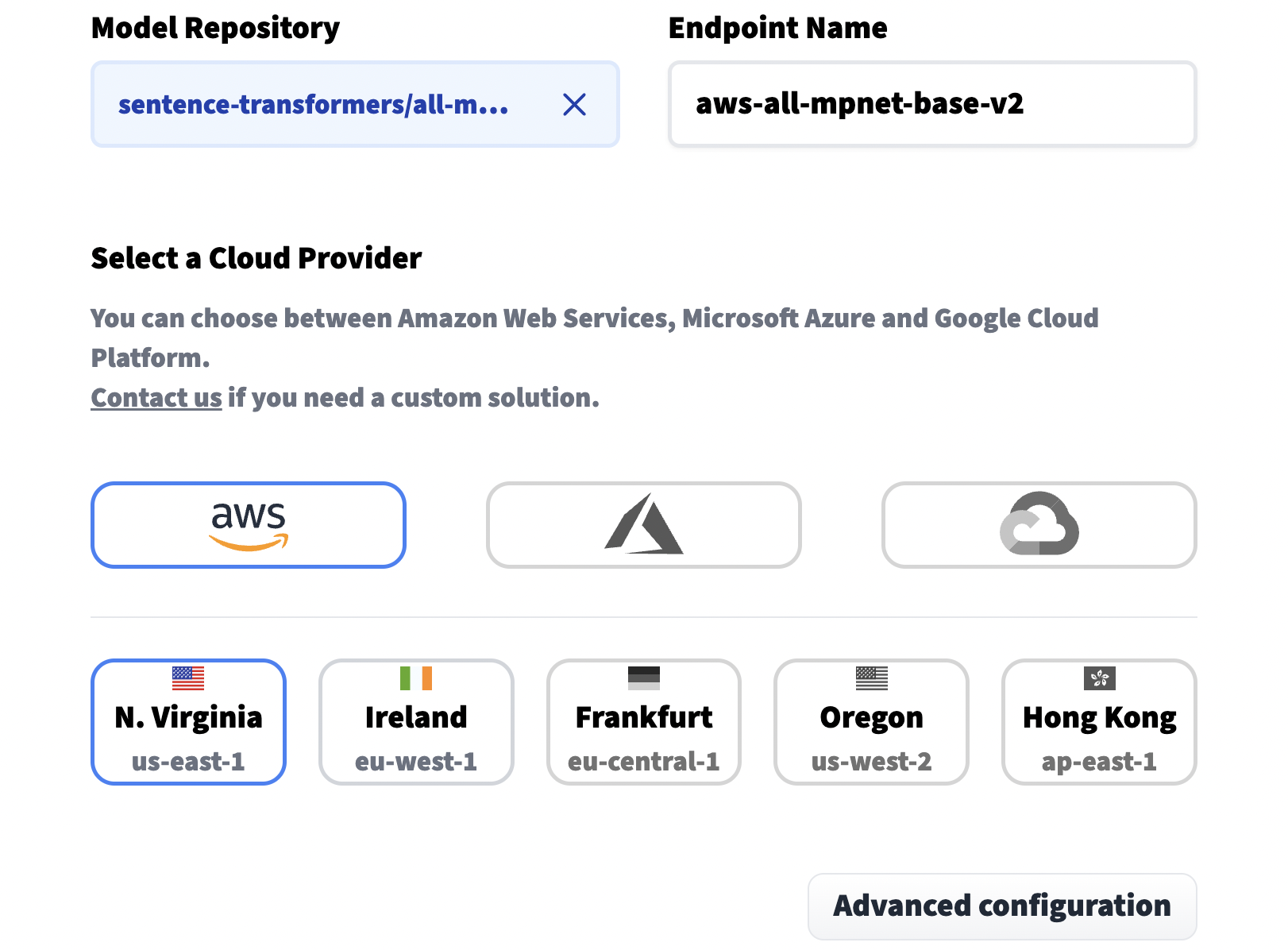
 Other important options include the *Instance Type*, by default this uses CPU which is cheaper but also slower. For faster processing we need a GPU instance. And finally, we set our privacy setting near the end of the page.
After setting our options we can click **Create Endpoint** at the bottom of the page. This action should take use to the next page where we will see the current status of our endpoint.
Other important options include the *Instance Type*, by default this uses CPU which is cheaper but also slower. For faster processing we need a GPU instance. And finally, we set our privacy setting near the end of the page.
After setting our options we can click **Create Endpoint** at the bottom of the page. This action should take use to the next page where we will see the current status of our endpoint.
 Once the status has moved from **Building** to **Running** (this can take some time), we're ready to begin creating embeddings with it.
## Create embeddings
Each endpoint is given an **Endpoint URL**, it can be found on the endpoint **Overview** page. We need to assign this endpoint URL to the `endpoint_url` variable.
Once the status has moved from **Building** to **Running** (this can take some time), we're ready to begin creating embeddings with it.
## Create embeddings
Each endpoint is given an **Endpoint URL**, it can be found on the endpoint **Overview** page. We need to assign this endpoint URL to the `endpoint_url` variable.
 ```Python Python theme={null}
endpoint = ""
```
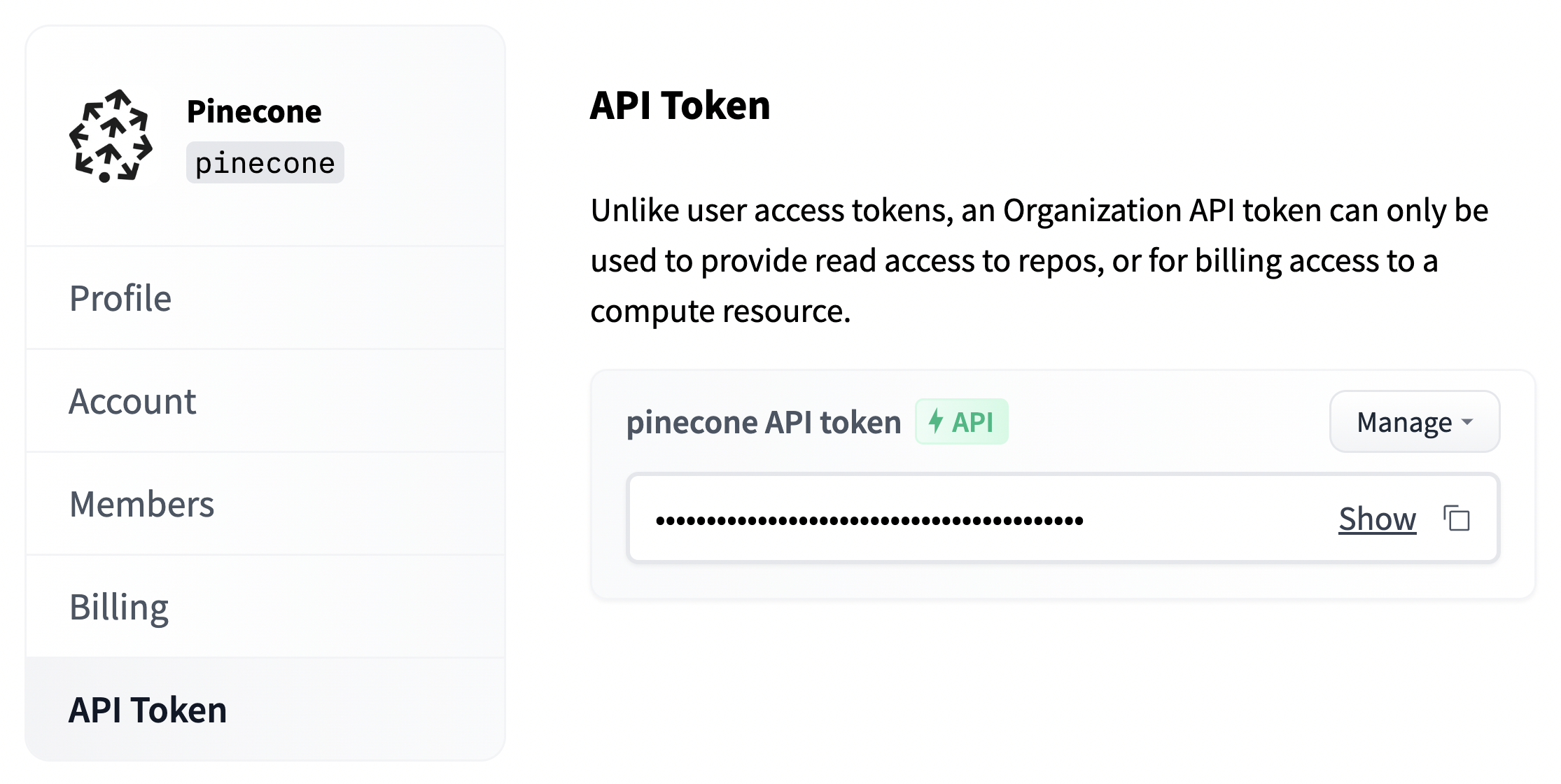
We will also need the organization API token, we find this via the organization settings on Hugging Face (`https://huggingface.co/organizations//settings/profile`). This is assigned to the `api_org` variable.
```Python Python theme={null}
endpoint = ""
```
We will also need the organization API token, we find this via the organization settings on Hugging Face (`https://huggingface.co/organizations//settings/profile`). This is assigned to the `api_org` variable.
 ```Python Python theme={null}
api_org = ""
```
Now we're ready to create embeddings via Inference Endpoints. Let's start with a toy example.
```Python Python theme={null}
import requests
# add the api org token to the headers
headers = {
'Authorization': f'Bearer {api_org}'
}
# we add sentences to embed like so
json_data = {"inputs": ["a happy dog", "a sad dog"]}
# make the request
res = requests.post(
endpoint,
headers=headers,
json=json_data
)
```
We should see a `200` response.
```Python Python theme={null}
res
```
```
```
Inside the response we should find two embeddings...
```Python Python theme={null}
len(res.json()['embeddings'])
```
```
2
```
We can also see the dimensionality of our embeddings like so:
```Python Python theme={null}
dim = len(res.json()['embeddings'][0])
dim
```
```
768
```
We will need more than two items to search through, so let's download a larger dataset. For this we will use Hugging Face datasets.
```Python Python theme={null}
from datasets import load_dataset
snli = load_dataset("snli", split='train')
snli
```
```
Downloading: 100%|██████████| 1.93k/1.93k [00:00<00:00, 992kB/s]
Downloading: 100%|██████████| 1.26M/1.26M [00:00<00:00, 31.2MB/s]
Downloading: 100%|██████████| 65.9M/65.9M [00:01<00:00, 57.9MB/s]
Downloading: 100%|██████████| 1.26M/1.26M [00:00<00:00, 43.6MB/s]
Dataset({
features: ['premise', 'hypothesis', 'label'],
num_rows: 550152
})
```
SNLI contains 550K sentence pairs, many of these include duplicate items so we will take just one set of these (the *hypothesis*) and deduplicate them.
```Python theme={null}
passages = list(set(snli['hypothesis']))
len(passages)
```
```
480042
```
We will drop to 50K sentences so that the example is quick to run, if you have time, feel free to keep the full 480K.
```Python Python theme={null}
passages = passages[:50_000]
```
## Create a Pinecone index
With our endpoint and dataset ready, all that we're missing is a vector database. For this, we need to initialize our connection to Pinecone, this requires a [free API key](https://app.pinecone.io/).
```Python Python theme={null}
import pinecone
# initialize connection to pinecone (get API key at app.pinecone.io)
pinecone.init(api_key="YOUR_API_KEY", environment="YOUR_ENVIRONMENT")
```
Now we create a new index called `'hf-endpoints'`, the name isn't important *but* the `dimension` must align to our endpoint model output dimensionality (we found this in `dim` above) and the model metric (typically `cosine` is okay, but not for all models).
```Python Python theme={null}
index_name = 'hf-endpoints'
# check if the hf-endpoints index exists
if index_name not in pinecone.list_indexes():
# create the index if it does not exist
pinecone.create_index(
index_name,
dimension=dim,
metric="cosine"
)
# connect to hf-endpoints index we created
index = pinecone.Index(index_name)
```
## Create and index embeddings
Now we have all of our components ready; endpoints, dataset, and Pinecone. Let's go ahead and create our dataset embeddings and index them within Pinecone.
```Python Python theme={null}
from tqdm.auto import tqdm
# we will use batches of 64
batch_size = 64
for i in tqdm(range(0, len(passages), batch_size)):
# find end of batch
i_end = min(i+batch_size, len(passages))
# extract batch
batch = passages[i:i_end]
# generate embeddings for batch via endpoints
res = requests.post(
endpoint,
headers=headers,
json={"inputs": batch}
)
emb = res.json()['embeddings']
# get metadata (just the original text)
meta = [{'text': text} for text in batch]
# create IDs
ids = [str(x) for x in range(i, i_end)]
# add all to upsert list
to_upsert = list(zip(ids, emb, meta))
# upsert/insert these records to pinecone
_ = index.upsert(vectors=to_upsert)
# check that we have all vectors in index
index.describe_index_stats()
```
```
100%|██████████| 782/782 [11:02<00:00, 1.18it/s]
{'dimension': 768,
'index_fullness': 0.1,
'namespaces': {'': {'vector_count': 50000}},
'total_vector_count': 50000}
```
With everything indexed we can begin querying. We will take a few examples from the *premise* column of the dataset.
```Python Python theme={null}
query = snli['premise'][0]
print(f"Query: {query}")
# encode with HF endpoints
res = requests.post(endpoint, headers=headers, json={"inputs": query})
xq = res.json()['embeddings']
# query and return top 5
xc = index.query(xq, top_k=5, include_metadata=True)
# iterate through results and print text
print("Answers:")
for match in xc['matches']:
print(match['metadata']['text'])
```
```
Query: A person on a horse jumps over a broken down airplane.
Answers:
The horse jumps over a toy airplane.
a lady rides a horse over a plane shaped obstacle
A person getting onto a horse.
person rides horse
A woman riding a horse jumps over a bar.
```
These look good, let's try a couple more examples.
```Python Python theme={null}
query = snli['premise'][100]
print(f"Query: {query}")
# encode with HF endpoints
res = requests.post(endpoint, headers=headers, json={"inputs": query})
xq = res.json()['embeddings']
# query and return top 5
xc = index.query(xq, top_k=5, include_metadata=True)
# iterate through results and print text
print("Answers:")
for match in xc['matches']:
print(match['metadata']['text'])
```
```
Query: A woman is walking across the street eating a banana, while a man is following with his briefcase.
Answers:
A woman eats a banana and walks across a street, and there is a man trailing behind her.
A woman eats a banana split.
A woman is carrying two small watermelons and a purse while walking down the street.
The woman walked across the street.
A woman walking on the street with a monkey on her back.
```
And one more...
```Python Python theme={null}
query = snli['premise'][200]
print(f"Query: {query}")
# encode with HF endpoints
res = requests.post(endpoint, headers=headers, json={"inputs": query})
xq = res.json()['embeddings']
# query and return top 5
xc = index.query(xq, top_k=5, include_metadata=True)
# iterate through results and print text
print("Answers:")
for match in xc['matches']:
print(match['metadata']['text'])
```
```
Query: People on bicycles waiting at an intersection.
Answers:
A pair of people on bikes are waiting at a stoplight.
Bike riders wait to cross the street.
people on bicycles
Group of bike riders stopped in the street.
There are bicycles outside.
```
All of these results look excellent. If you are not planning on running your endpoint and vector DB beyond this tutorial, you can shut down both.
## Clean up
Shut down the endpoint by navigating to the Inference Endpoints **Overview** page and selecting **Delete endpoint**. Delete the Pinecone index with:
```Python Python theme={null}
pinecone.delete_index(index_name)
```
Once the index is deleted, you cannot use it again.
```Python Python theme={null}
api_org = ""
```
Now we're ready to create embeddings via Inference Endpoints. Let's start with a toy example.
```Python Python theme={null}
import requests
# add the api org token to the headers
headers = {
'Authorization': f'Bearer {api_org}'
}
# we add sentences to embed like so
json_data = {"inputs": ["a happy dog", "a sad dog"]}
# make the request
res = requests.post(
endpoint,
headers=headers,
json=json_data
)
```
We should see a `200` response.
```Python Python theme={null}
res
```
```
```
Inside the response we should find two embeddings...
```Python Python theme={null}
len(res.json()['embeddings'])
```
```
2
```
We can also see the dimensionality of our embeddings like so:
```Python Python theme={null}
dim = len(res.json()['embeddings'][0])
dim
```
```
768
```
We will need more than two items to search through, so let's download a larger dataset. For this we will use Hugging Face datasets.
```Python Python theme={null}
from datasets import load_dataset
snli = load_dataset("snli", split='train')
snli
```
```
Downloading: 100%|██████████| 1.93k/1.93k [00:00<00:00, 992kB/s]
Downloading: 100%|██████████| 1.26M/1.26M [00:00<00:00, 31.2MB/s]
Downloading: 100%|██████████| 65.9M/65.9M [00:01<00:00, 57.9MB/s]
Downloading: 100%|██████████| 1.26M/1.26M [00:00<00:00, 43.6MB/s]
Dataset({
features: ['premise', 'hypothesis', 'label'],
num_rows: 550152
})
```
SNLI contains 550K sentence pairs, many of these include duplicate items so we will take just one set of these (the *hypothesis*) and deduplicate them.
```Python theme={null}
passages = list(set(snli['hypothesis']))
len(passages)
```
```
480042
```
We will drop to 50K sentences so that the example is quick to run, if you have time, feel free to keep the full 480K.
```Python Python theme={null}
passages = passages[:50_000]
```
## Create a Pinecone index
With our endpoint and dataset ready, all that we're missing is a vector database. For this, we need to initialize our connection to Pinecone, this requires a [free API key](https://app.pinecone.io/).
```Python Python theme={null}
import pinecone
# initialize connection to pinecone (get API key at app.pinecone.io)
pinecone.init(api_key="YOUR_API_KEY", environment="YOUR_ENVIRONMENT")
```
Now we create a new index called `'hf-endpoints'`, the name isn't important *but* the `dimension` must align to our endpoint model output dimensionality (we found this in `dim` above) and the model metric (typically `cosine` is okay, but not for all models).
```Python Python theme={null}
index_name = 'hf-endpoints'
# check if the hf-endpoints index exists
if index_name not in pinecone.list_indexes():
# create the index if it does not exist
pinecone.create_index(
index_name,
dimension=dim,
metric="cosine"
)
# connect to hf-endpoints index we created
index = pinecone.Index(index_name)
```
## Create and index embeddings
Now we have all of our components ready; endpoints, dataset, and Pinecone. Let's go ahead and create our dataset embeddings and index them within Pinecone.
```Python Python theme={null}
from tqdm.auto import tqdm
# we will use batches of 64
batch_size = 64
for i in tqdm(range(0, len(passages), batch_size)):
# find end of batch
i_end = min(i+batch_size, len(passages))
# extract batch
batch = passages[i:i_end]
# generate embeddings for batch via endpoints
res = requests.post(
endpoint,
headers=headers,
json={"inputs": batch}
)
emb = res.json()['embeddings']
# get metadata (just the original text)
meta = [{'text': text} for text in batch]
# create IDs
ids = [str(x) for x in range(i, i_end)]
# add all to upsert list
to_upsert = list(zip(ids, emb, meta))
# upsert/insert these records to pinecone
_ = index.upsert(vectors=to_upsert)
# check that we have all vectors in index
index.describe_index_stats()
```
```
100%|██████████| 782/782 [11:02<00:00, 1.18it/s]
{'dimension': 768,
'index_fullness': 0.1,
'namespaces': {'': {'vector_count': 50000}},
'total_vector_count': 50000}
```
With everything indexed we can begin querying. We will take a few examples from the *premise* column of the dataset.
```Python Python theme={null}
query = snli['premise'][0]
print(f"Query: {query}")
# encode with HF endpoints
res = requests.post(endpoint, headers=headers, json={"inputs": query})
xq = res.json()['embeddings']
# query and return top 5
xc = index.query(xq, top_k=5, include_metadata=True)
# iterate through results and print text
print("Answers:")
for match in xc['matches']:
print(match['metadata']['text'])
```
```
Query: A person on a horse jumps over a broken down airplane.
Answers:
The horse jumps over a toy airplane.
a lady rides a horse over a plane shaped obstacle
A person getting onto a horse.
person rides horse
A woman riding a horse jumps over a bar.
```
These look good, let's try a couple more examples.
```Python Python theme={null}
query = snli['premise'][100]
print(f"Query: {query}")
# encode with HF endpoints
res = requests.post(endpoint, headers=headers, json={"inputs": query})
xq = res.json()['embeddings']
# query and return top 5
xc = index.query(xq, top_k=5, include_metadata=True)
# iterate through results and print text
print("Answers:")
for match in xc['matches']:
print(match['metadata']['text'])
```
```
Query: A woman is walking across the street eating a banana, while a man is following with his briefcase.
Answers:
A woman eats a banana and walks across a street, and there is a man trailing behind her.
A woman eats a banana split.
A woman is carrying two small watermelons and a purse while walking down the street.
The woman walked across the street.
A woman walking on the street with a monkey on her back.
```
And one more...
```Python Python theme={null}
query = snli['premise'][200]
print(f"Query: {query}")
# encode with HF endpoints
res = requests.post(endpoint, headers=headers, json={"inputs": query})
xq = res.json()['embeddings']
# query and return top 5
xc = index.query(xq, top_k=5, include_metadata=True)
# iterate through results and print text
print("Answers:")
for match in xc['matches']:
print(match['metadata']['text'])
```
```
Query: People on bicycles waiting at an intersection.
Answers:
A pair of people on bikes are waiting at a stoplight.
Bike riders wait to cross the street.
people on bicycles
Group of bike riders stopped in the street.
There are bicycles outside.
```
All of these results look excellent. If you are not planning on running your endpoint and vector DB beyond this tutorial, you can shut down both.
## Clean up
Shut down the endpoint by navigating to the Inference Endpoints **Overview** page and selecting **Delete endpoint**. Delete the Pinecone index with:
```Python Python theme={null}
pinecone.delete_index(index_name)
```
Once the index is deleted, you cannot use it again.